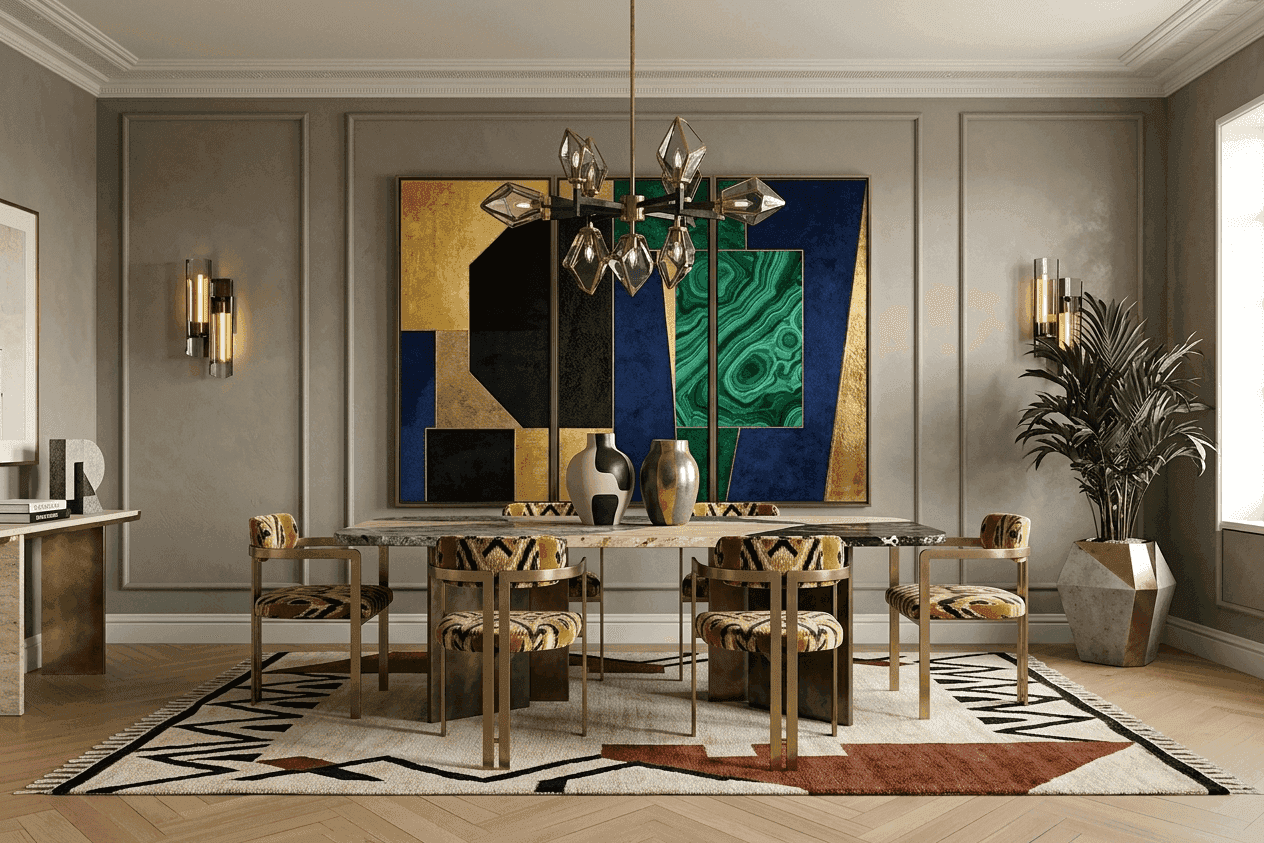
Room Edit: AI room design from a photo
Design— Find what's off in your actual room, then test the fix.
See it in your room
before you commit.
Upload a photo of your room and find out what might be holding it back, whether it's the layout, scale, lighting, or something harder to name.
What's Off? helps you figure out where to start. Then test changes in your own photo, explore the layout on a floor plan, or see it in 3D before making a commitment.
Something feel off? Start here- •Free to start: see what’s off
- •Where to start, not a 40-item list
- •Test fixes in your photo, plan or 3D
- •Matched to real products
How it works
Four steps from photo to direction.
No design experience needed. Room Edit tells you where to start, and if you already know what you want, you can simply describe it.
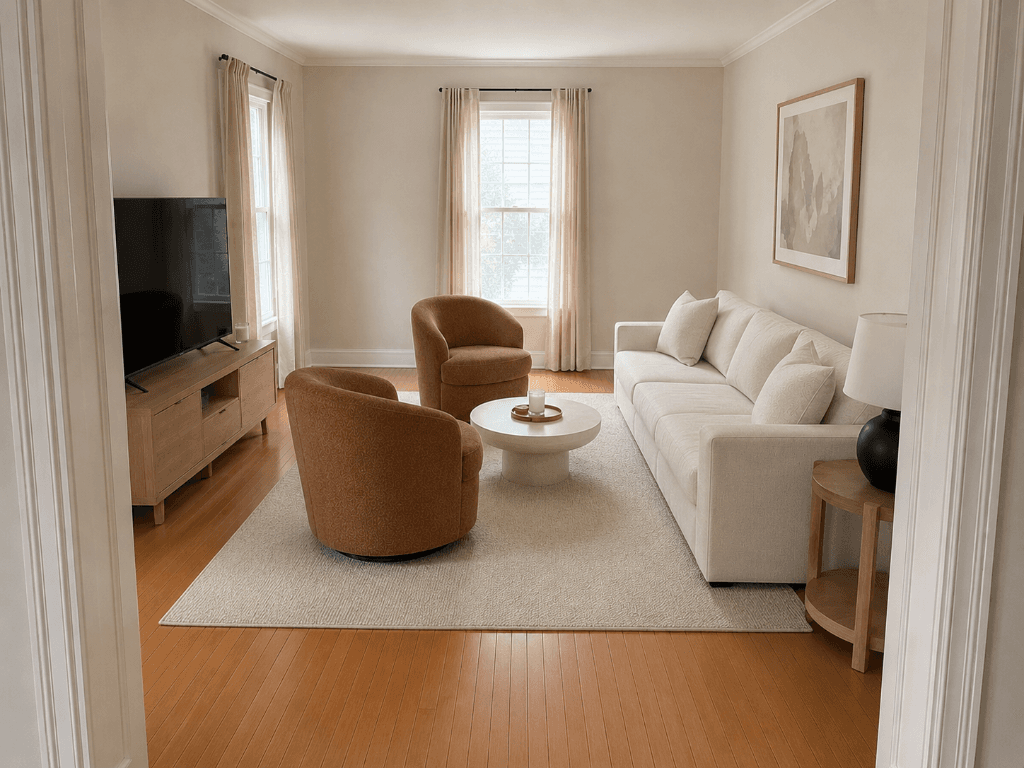
01 - Upload a photo of your room.
Upload a photo of your room.
Start with the space you actually have. Upload your room, share how you use it, and identify anything you want to keep or work around.
Architecture, windows, and doors are preserved.
The AI works with your actual space.
02 - See what's off.
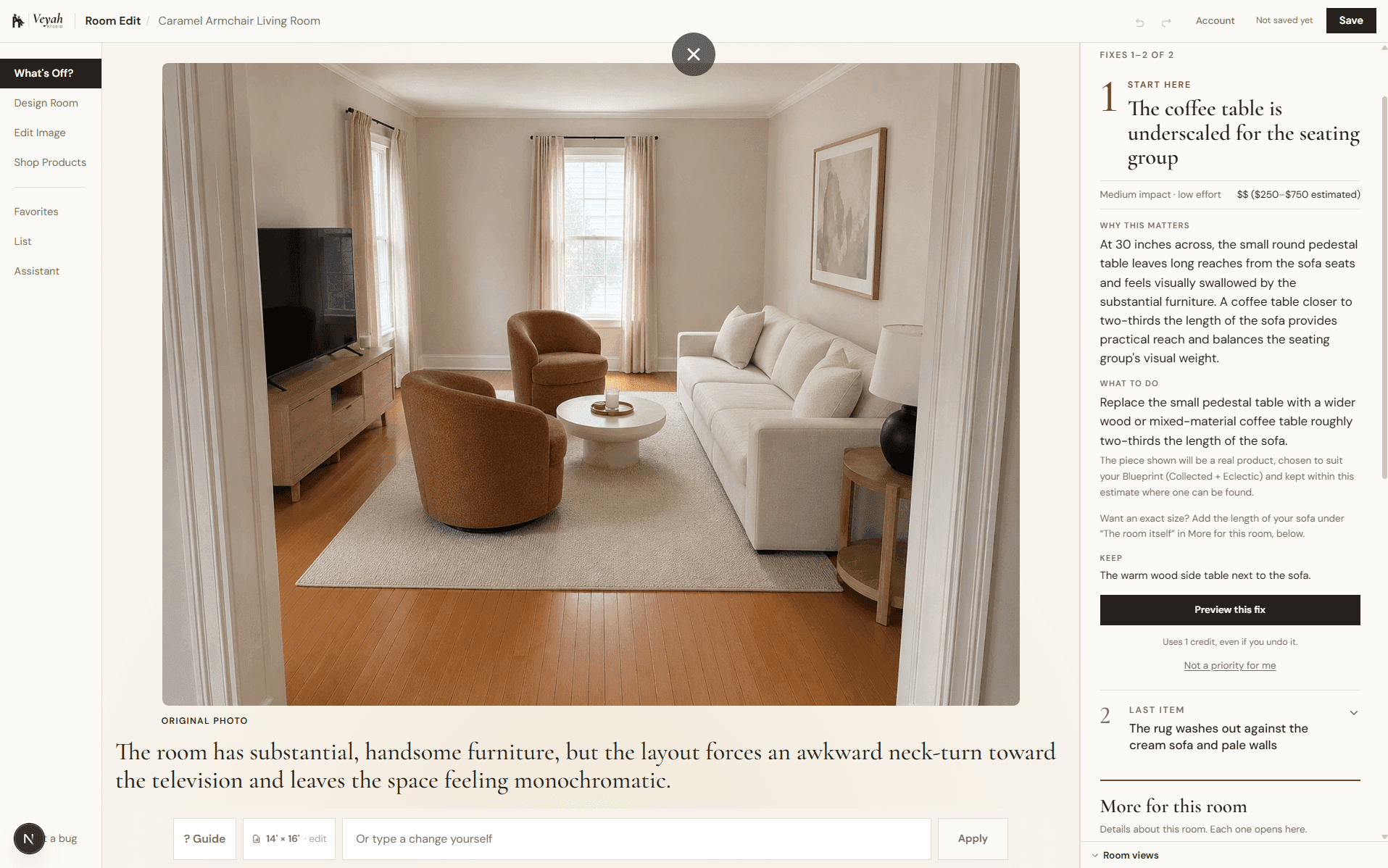
See what's off, and where to start.
Get a prioritized assessment of what may be holding the room back, with an explanation of why each issue matters and what you can do about it.
The review is free. It doesn't use a credit. How What's Off works
03 - Test the fix.
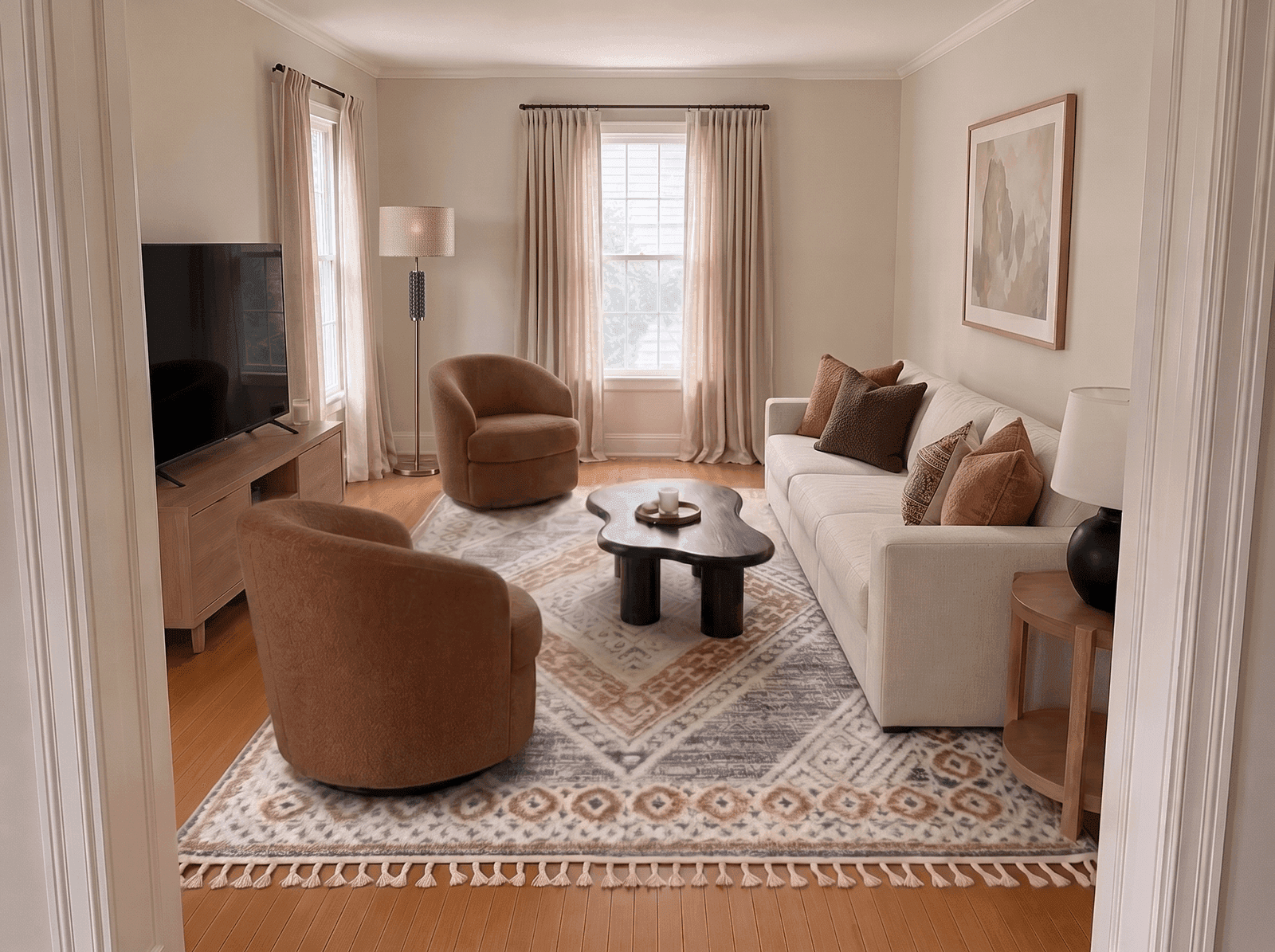
Test the fix before you commit.
Preview design changes in your own photo, or explore furniture placement through a floor plan and 3D model.
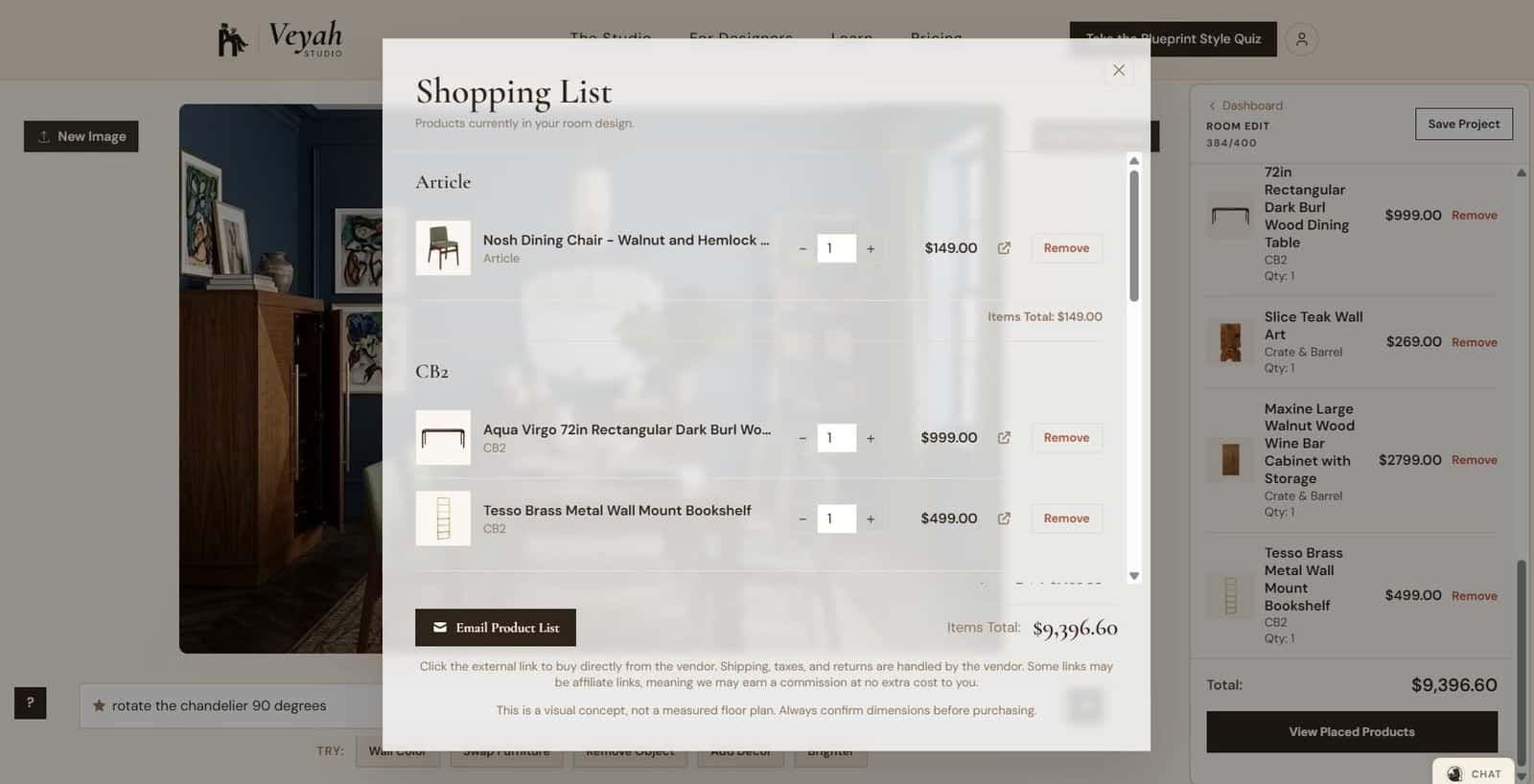
04 - Keep what works, then shop it.
Keep what works, then shop it.
Explore real products from Veyah's catalog and online retailers, and save the pieces you love to your shopping list.
AI-generated details may not always correspond to an exact product, so check the linked selections before purchasing.
Works with AI Mood Boards: select a Mood Board to preview those exact pieces in your room.
What can you do with Room Edit
More than a style filter.
Room Edit handles finding the problem, specific decisions, full concept explorations, and everything in between.
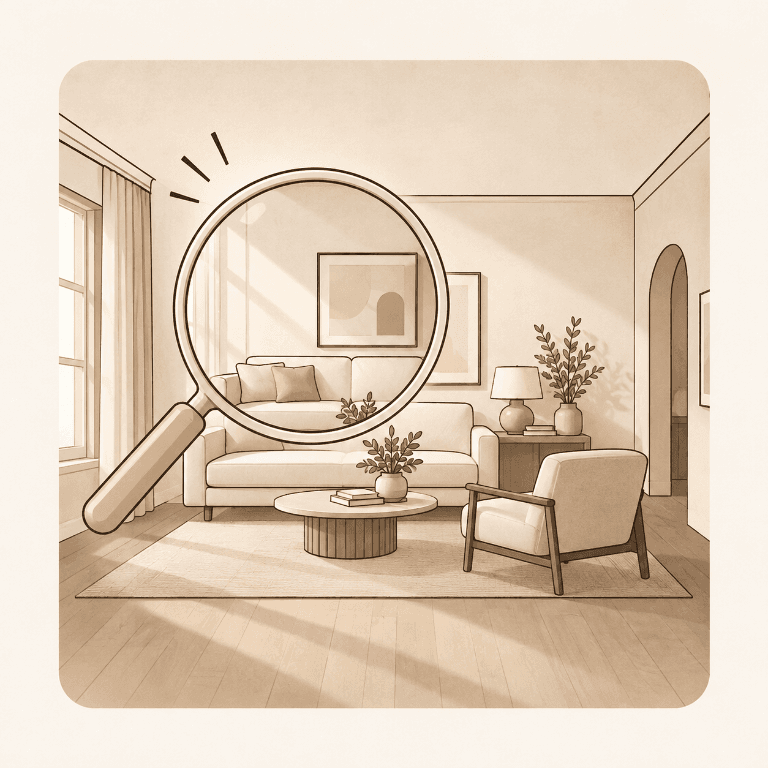
Find out what’s off.
When a room doesn’t feel right, What’s Off? helps you understand why. Get prioritized recommendations for layout, scale, lighting, and visual balance, informed by your chosen design style. Know what matters most, why it matters, and where to start.
ex. "The layout feels wrong" or "It feels unfinished"
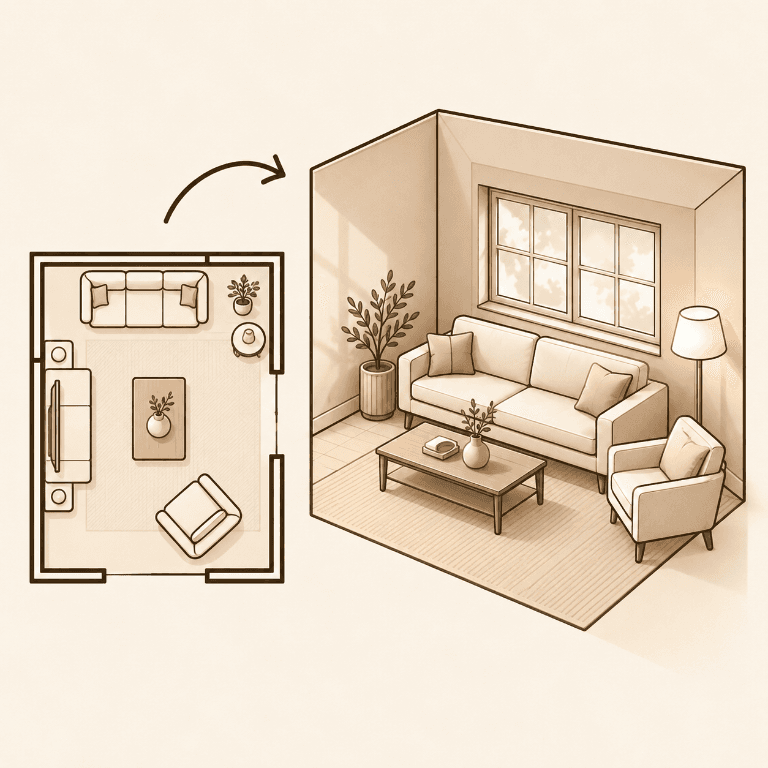
Rearrange on a plan, then see it in 3D
Start from a floor plan drawn from your photo, or upload a plan or sketch of the room. Drag furniture into place (to scale once you add its size), turn the room around in 3D, and render any view as a photo. Free, except the photo render.
ex. Float the sofa to face the TV, then check it in 3D
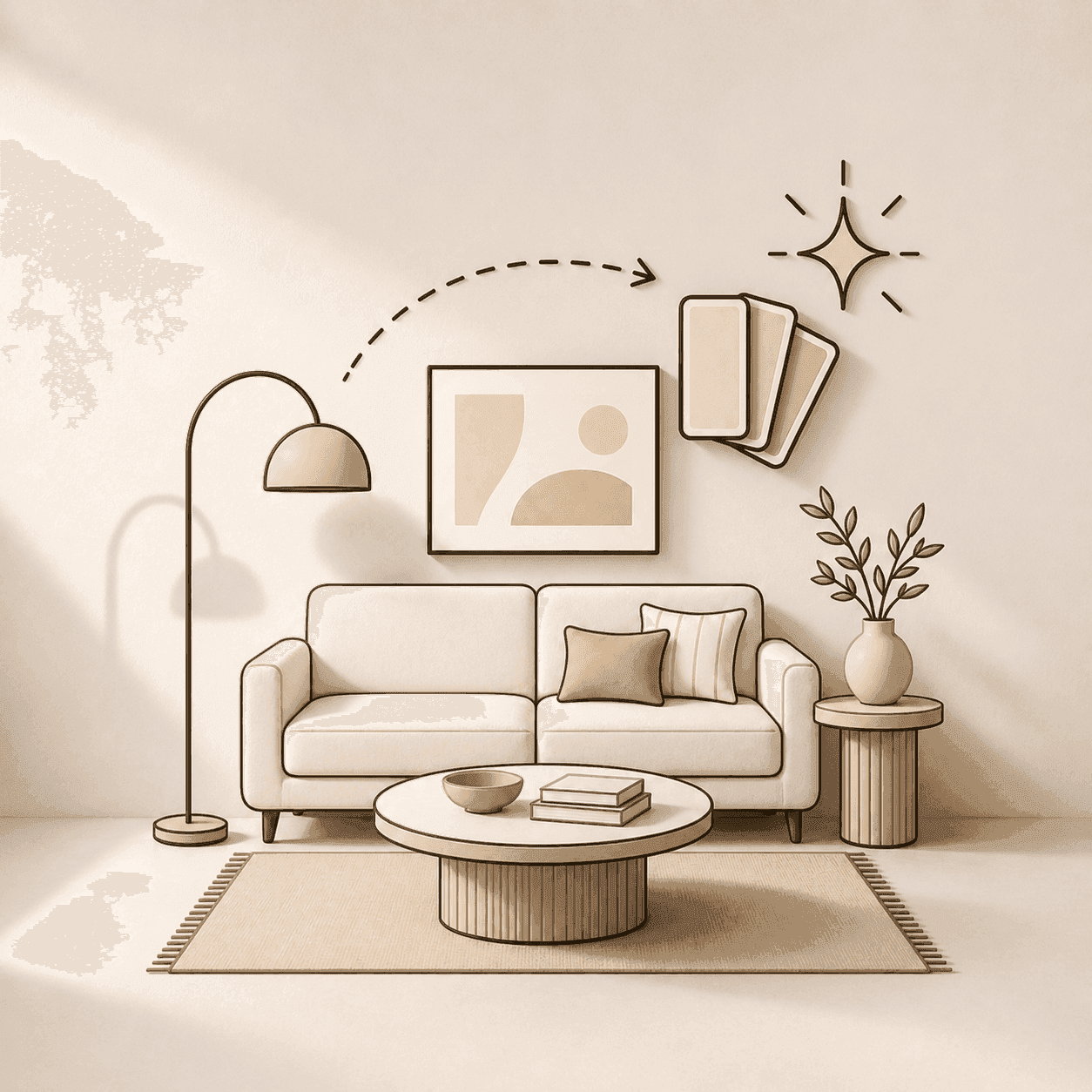
Test a style direction
See what Warm Modernist, Casual Luxe, or Moody Minimalist actually looks like in your room — not in a stock photo.
ex. "Apply a New Traditionalist feel to this living room"
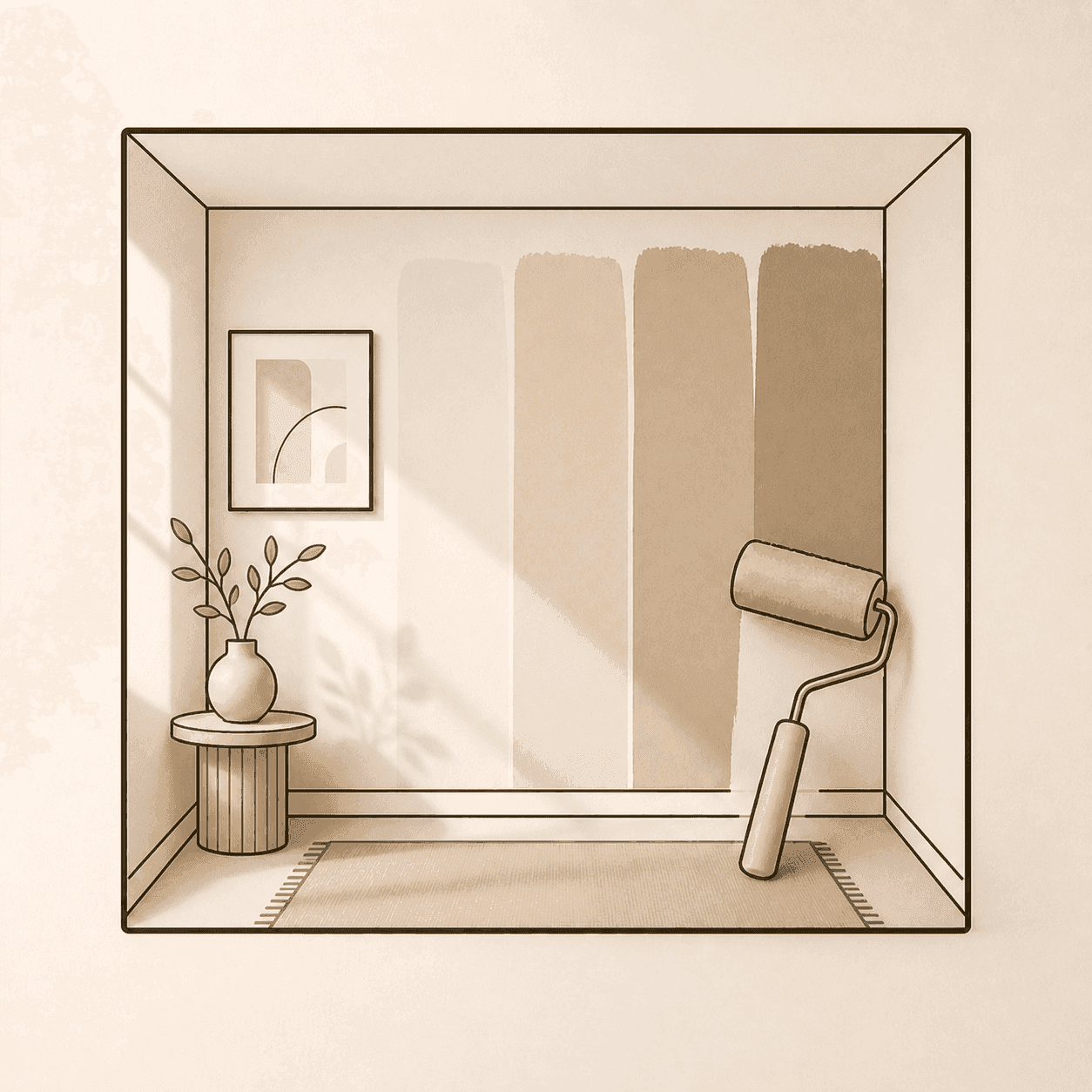
Try paint before you commit
Preview specific paint colors or general color directions in your actual space before buying a single sample pot.
ex. "Change the walls to Sherwin Williams Radiant Lilac."
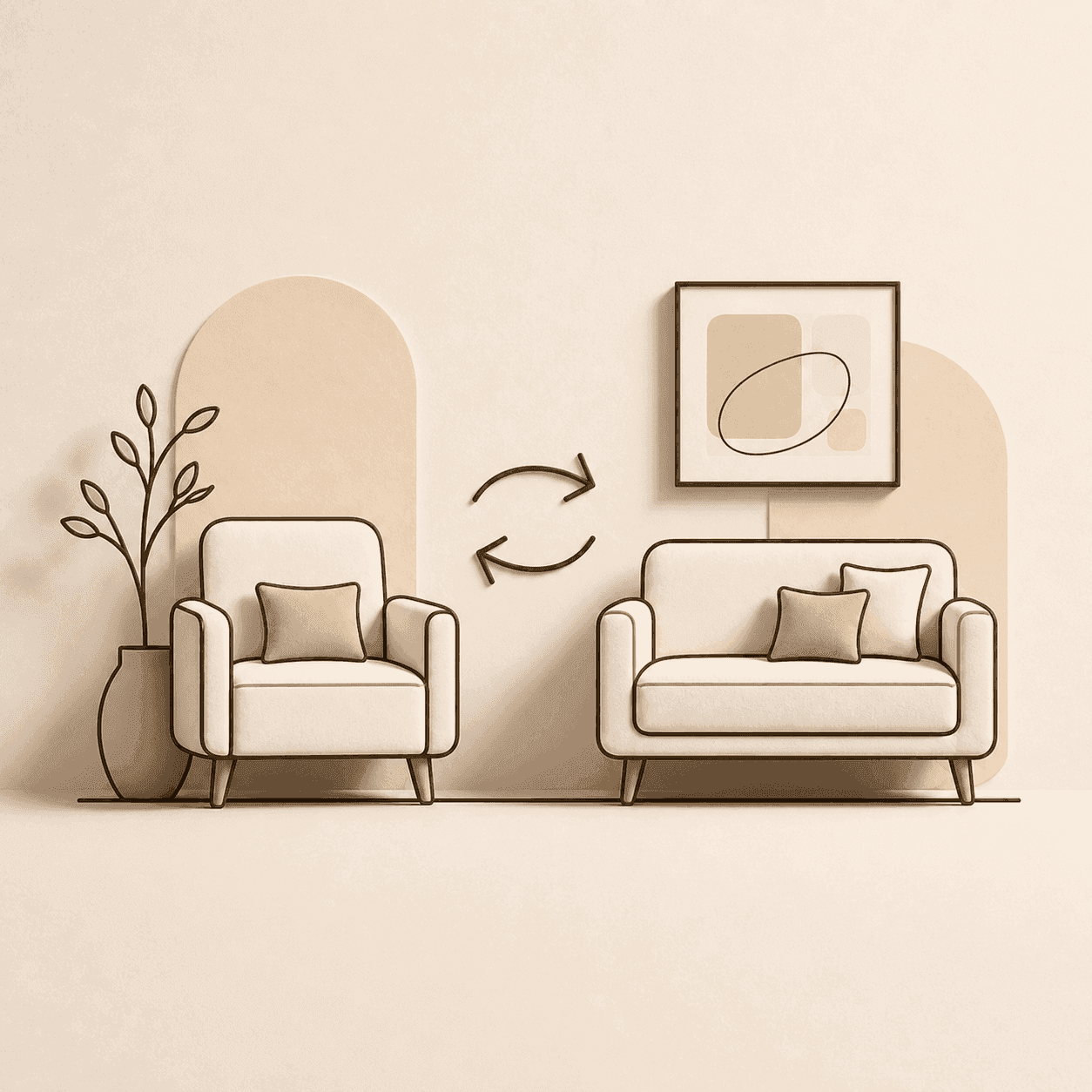
Swap furniture pieces
See how a specific sofa, rug, or lighting piece looks in your room before purchasing — using real products from the catalog.
ex. "Replace the sofa with something curved and bouclé"
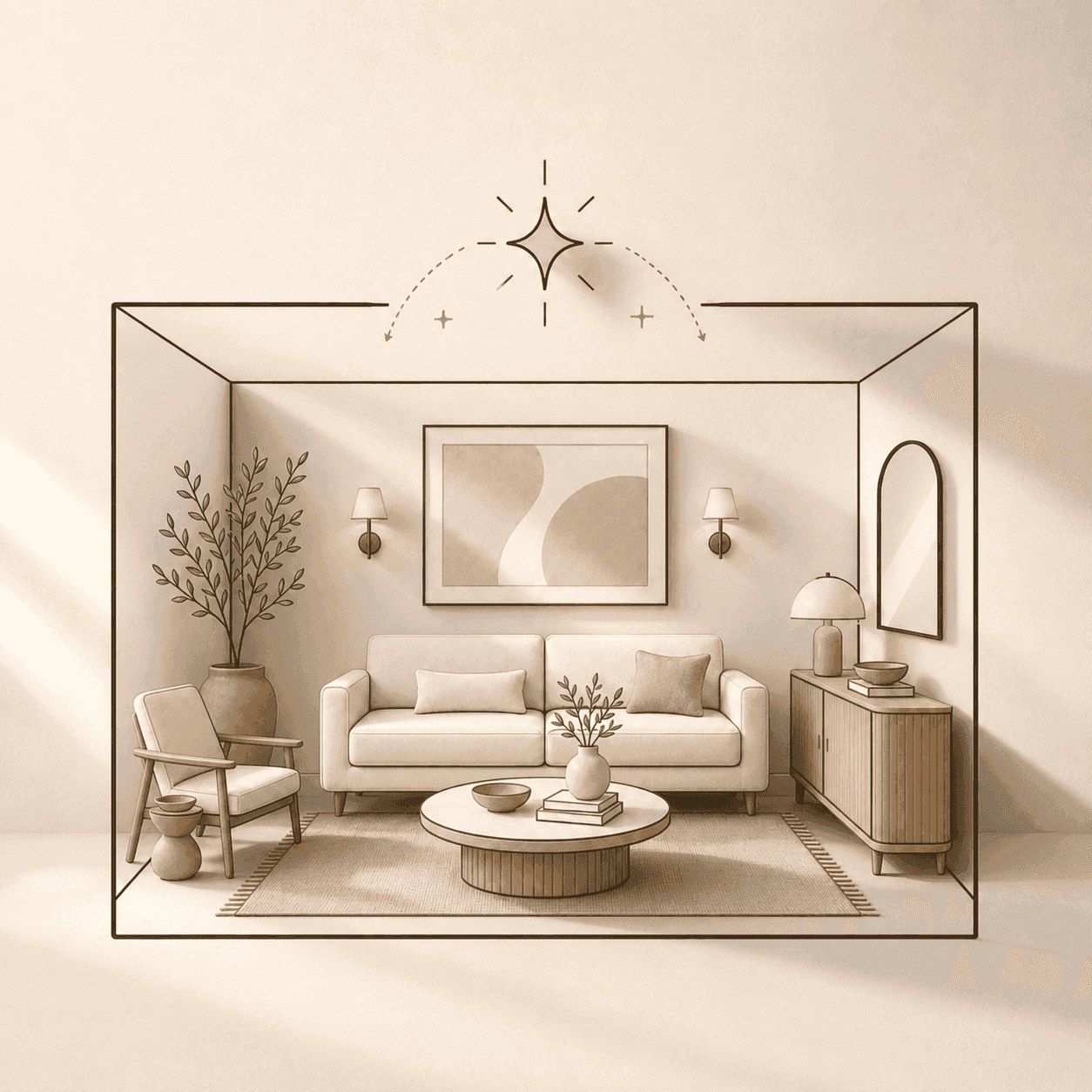
Reimagine a whole room
Give the AI a full creative brief and see a completely different version of your space — useful for major changes or starting from scratch.
ex. "Create a whimsical dining room in an Alice in Wonderland theme"
Or reimagine the whole room
Drag the slider to compare
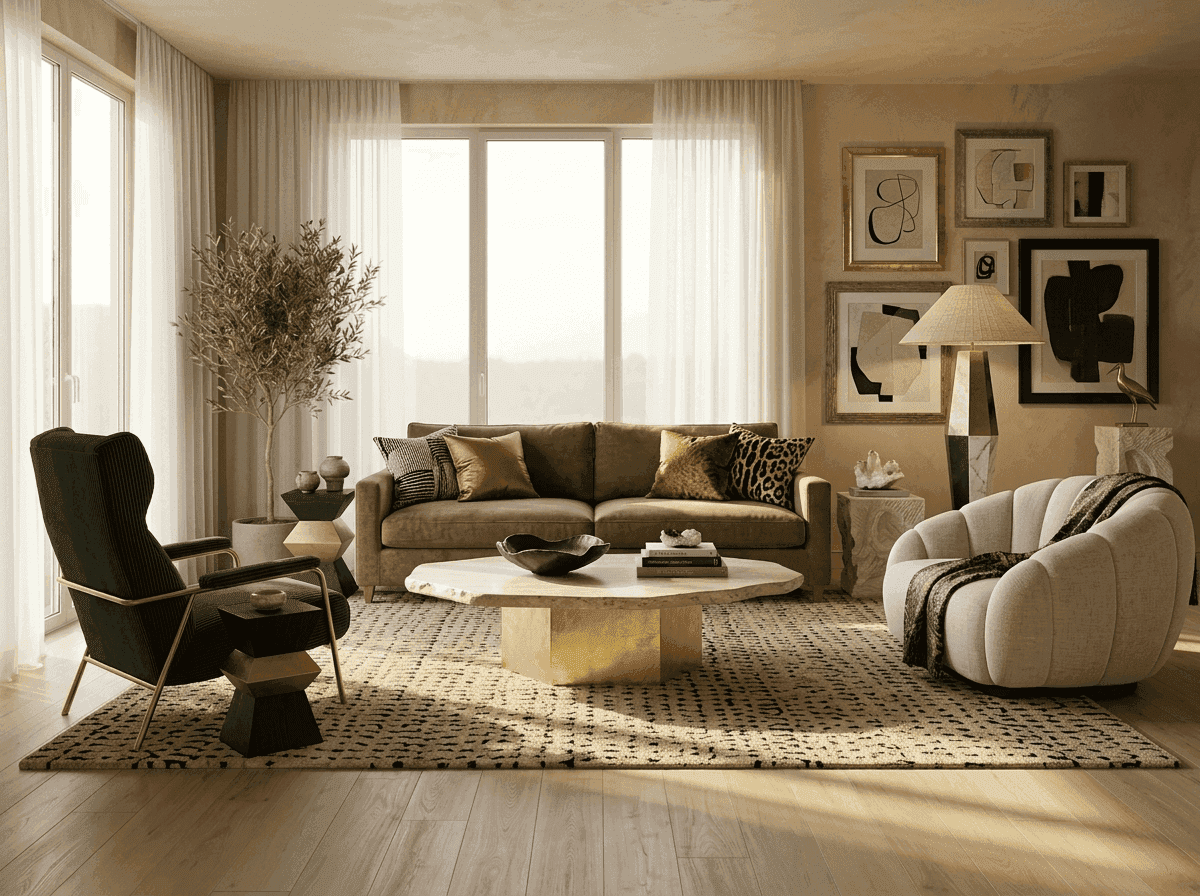
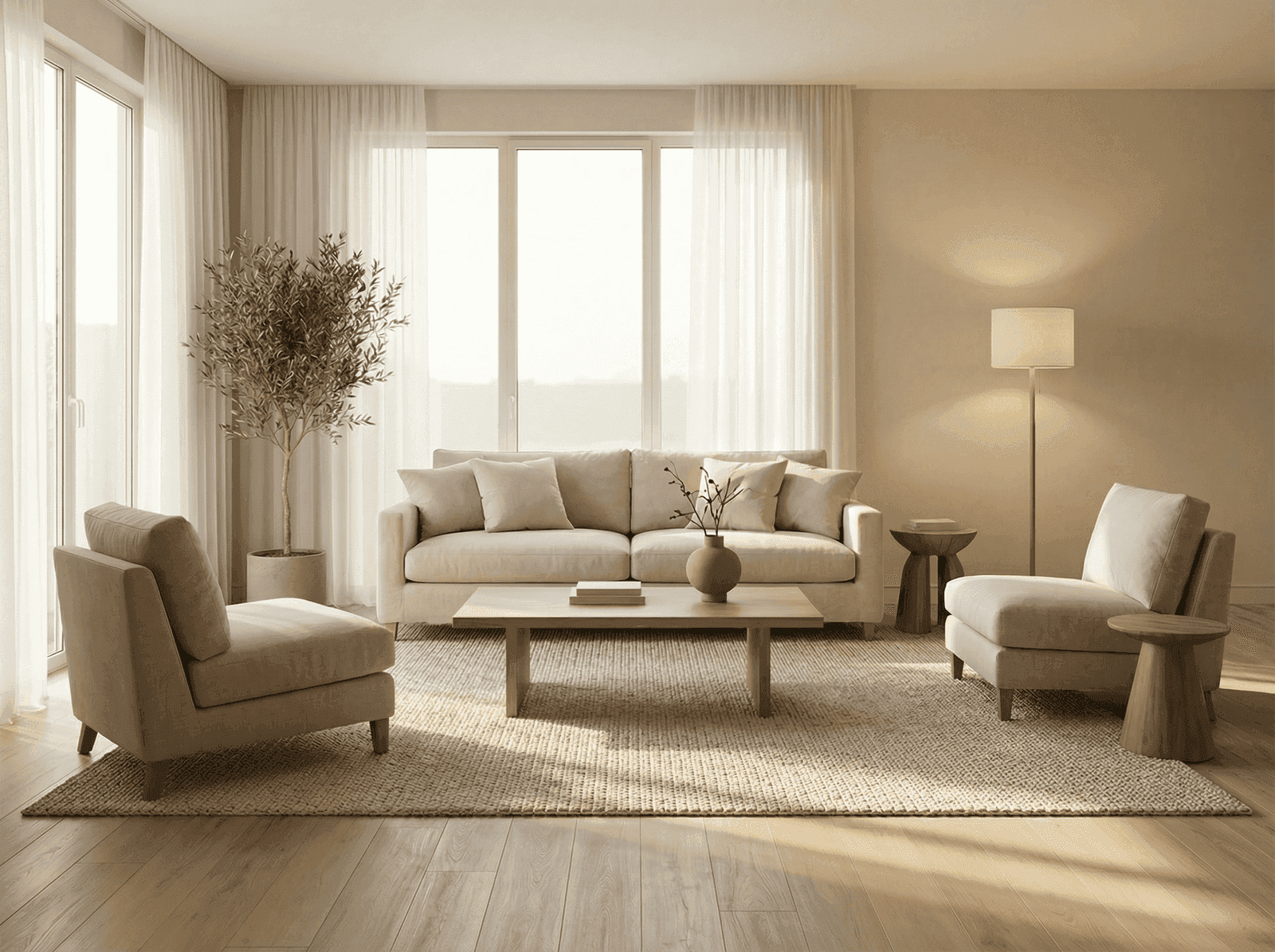
Prompt used: "Create a polished living room with rich textures, warm brass accents, and a bold, layered look. Decorate the entire room."
It's great for
Finding where to start, and making decisions before you spend. Seeing if a layout, style, color, or piece feels right in context. Getting unstuck when a room feels off and you can't say why.
It's not
Contractor-ready architectural drawings. The floor plan and 3D model are design visualization tools, and previews are AI-generated, so verify measurements and dimensions before purchases, renovations, or construction.
Who it's for
Built for anyone deciding on a real room.
Anyone who knows a room feels off but can't say why, and wants to know where to start.
Homeowners furnishing a room who want to see a style, color, or piece in their own space before buying it.
Renters who want to test paint, art, and furniture changes without touching a wall or making a purchase they can't return.
Anyone who took the Blueprint Style Quiz and wants to see their style applied to their actual room.
Interior designers who want to show a client a specific change in their real space during a call, not a stock photo.
Pricing
In every plan, or pay once.
Room Edit is part of every Veyah Studio plan. Rather not subscribe? A credit pack is design help without another subscription: one payment, from $19.
Plans or credit packs
Access Room Edit + AI Mood Board
Choose a plan you can cancel anytime, or pay once for a credit pack.
See plans and packs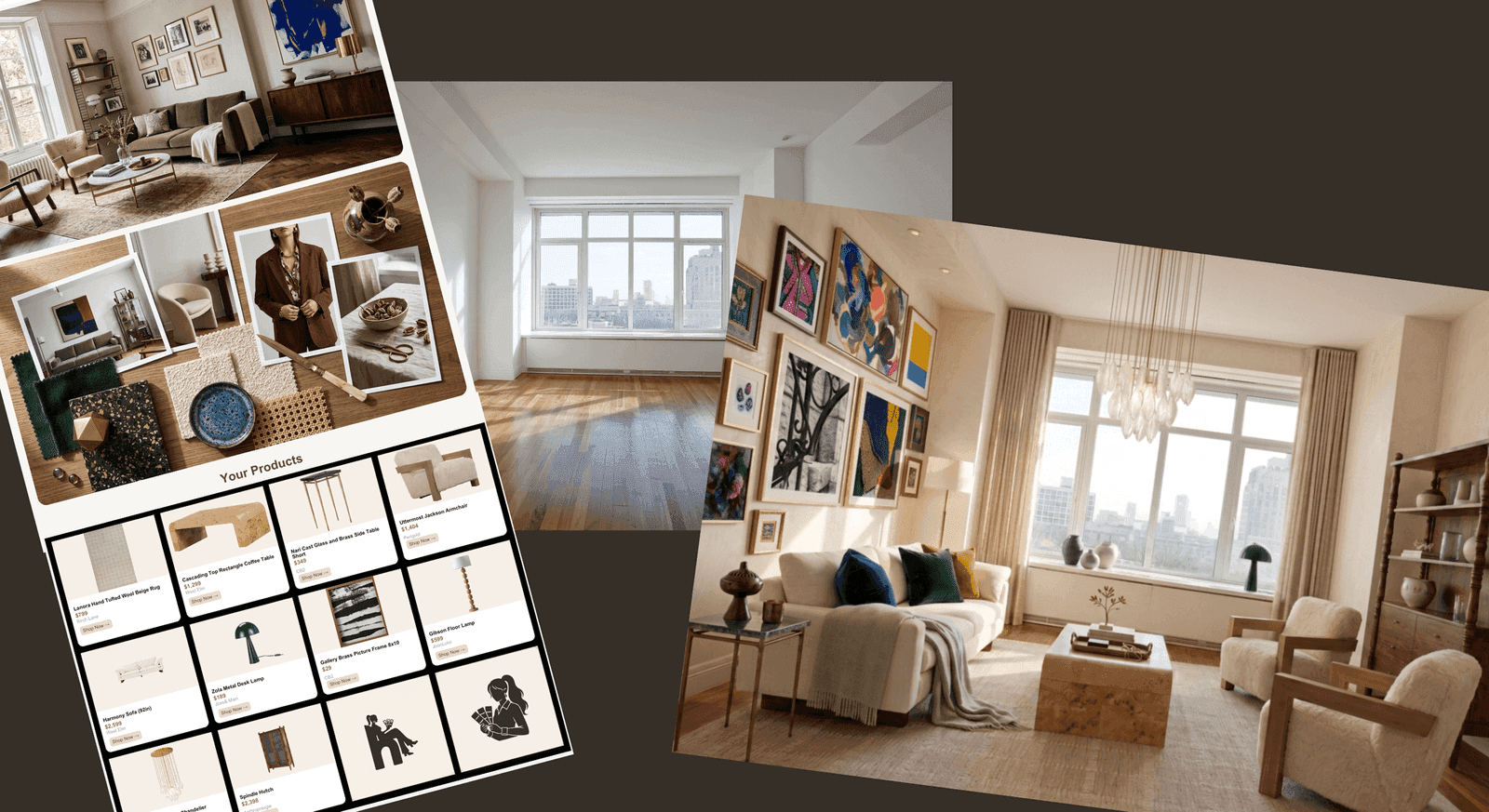
Pairs well with Room Edit
Don't have a direction yet?
Blueprint Style Quiz
Find your interior design style in two minutes, then bring it into Room Edit.
AI Mood Boards
Get a full room direction and product picks first, then preview them in your space with Room Edit.
Vibe Check
Not sure your edit is working? Get a real interior designer's feedback on it.
Designer Check
One question. A designer's answer.
Stuck on a design decision? Submit your room, mood board, or edit and get focused written feedback from a real designer.
$29 per question. Delivered within 2 business days.
Ask a Designer →
FAQ
Room Edit, in plain terms.
What is Room Edit?
Room Edit is an AI tool from Veyah Studio that reviews a photo of your actual room, tells you what is holding it back, and lets you preview the fix (a new layout, a paint color, a furniture swap, a new style, or a full room concept) before you buy or renovate anything.
How does Room Edit work?
Upload a photo of your room and tell it how you use the space. What’s Off reviews the photo and lists the highest-priority issues, starting with where to begin. Open an issue to see why it matters, then preview the fix in your photo, or try a new layout on a floor plan and in 3D. You can also describe any change you want in plain language.
What is What’s Off?
What’s Off is the part of Room Edit that reviews a photo of your room and surfaces the highest-priority design issues, such as layout, scale, lighting, contrast, or an unclear focal point. Instead of a long checklist, it tells you where to start, why each issue matters, and what to do about it.
Is Room Edit free?
Room Edit is included with every Veyah Studio plan, starting with the free Preview plan, which includes 5 Room Edit credits a month. Rather not subscribe? A credit pack gives you credits and the full design toolkit for one payment, from $19, and they last 12 months. The What’s Off review, the floor plan, and the 3D model don’t use credits; previewing a change in your photo uses one.
Can I change paint colors and furniture from a photo?
Yes. Upload a photo and Room Edit can preview a new paint color, swap a piece of furniture, change the layout or restyle the whole room, matched to real products where it can. It is free to start: the Preview plan includes Room Edit credits each month, and the What’s Off review, floor plan and 3D model don’t use credits.
Can I see my room as a floor plan or in 3D?
Yes. Room Edit draws a floor plan from your photo that you can correct by dragging furniture into place, and once you add the room’s size it is drawn to scale. The same plan becomes a 3D model you can turn around and rearrange, and you can render any view of it as a photo of your room for one credit.
Does What’s Off? consider my design style?
Yes. What’s Off? uses your selected design direction to help evaluate your room. Recommendations take aesthetic choices into account rather than applying the same styling expectations to every space.
Does Room Edit use real, shoppable products?
Furniture, lighting, and decor in an edit can be matched to real products from Veyah’s catalog and online, and what you add is saved to a shopping list organized by vendor. AI-generated images can also include illustrative details that aren’t exact products, so always check the linked product before buying.
Is the result a photorealistic render?
Room Edit creates a photorealistic AI-generated preview of your room and design changes. It is intended to help you visualize direction, scale, color, and overall feel, but it is not an exact architectural rendering or a guaranteed representation of the final installed space.
Can I use my own furniture or products in an edit?
Yes. With an Edit, Compose, or Studio plan you can upload your own product photos or links alongside Veyah’s catalog to see how existing pieces work with a new direction. See pricing for more info.